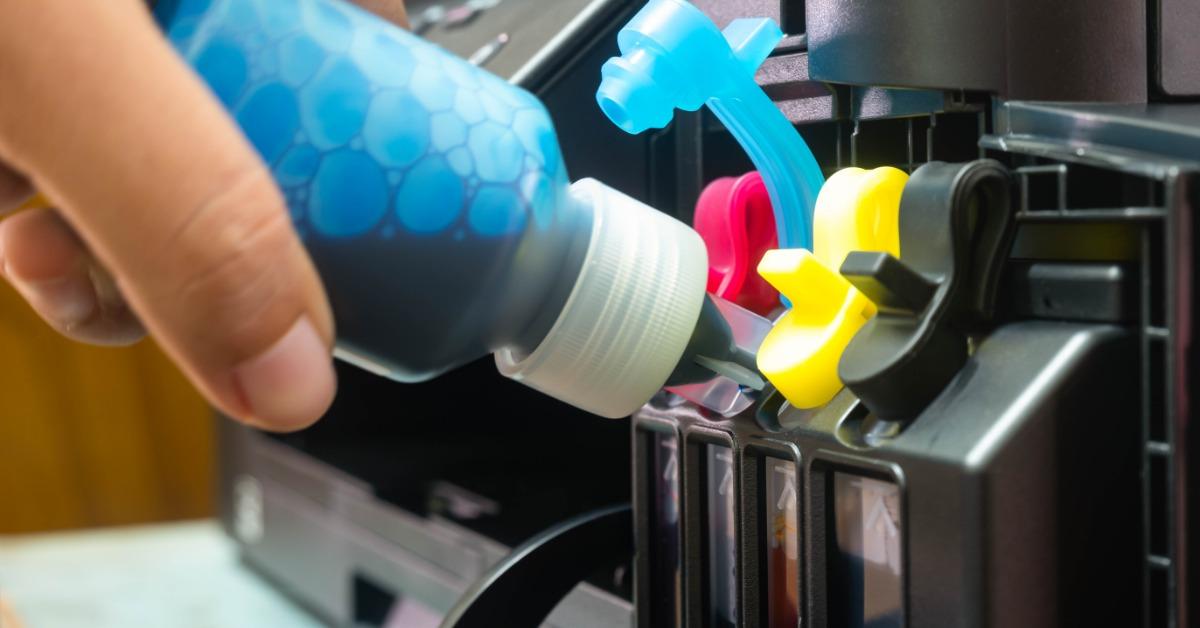
A cartridge may appear clean and properly installed, yet still produce faint lines or might miss certain colors. That usually means you need to restore ink flow rather than keep scrubbing the cartridge. Priming a Canon inkjet cartridge after cleaning works best when you follow the maintenance steps your specific Canon model supports. The goal is simple: get ink moving through the print head again without being wasteful or damaging delicate contacts and nozzles. Here’s everything that you need to know about priming your cartridge.
Know What Priming Means
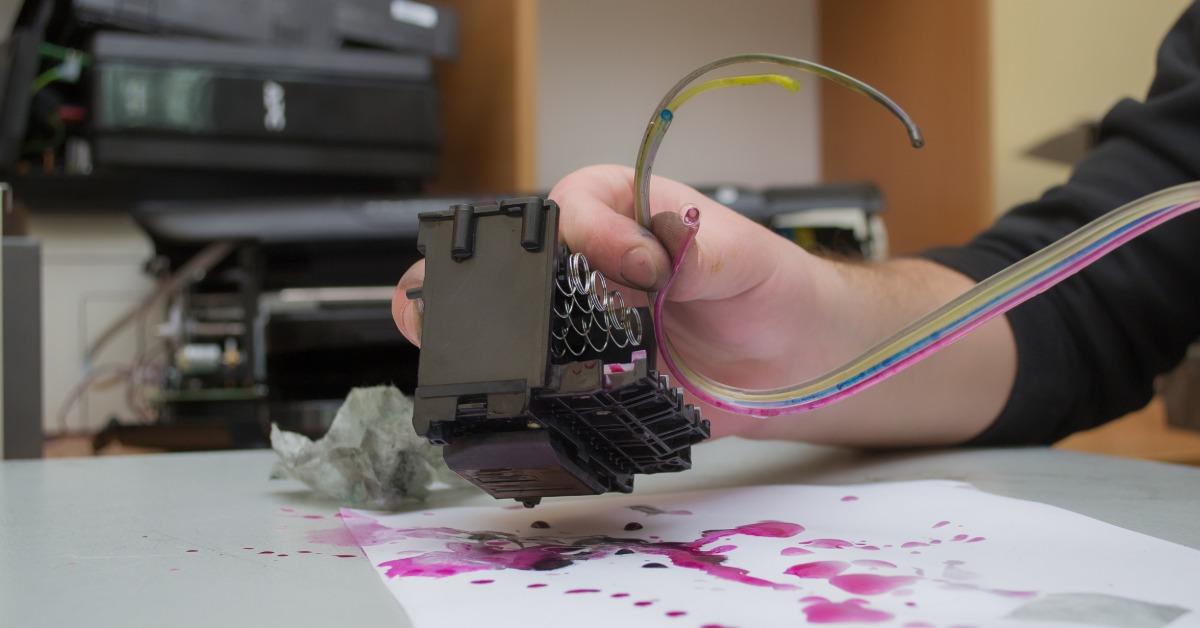
When people say “prime” a Canon cartridge, they usually mean restoring a steady supply of ink to the print head after maintenance. Canon doesn’t use one universal priming routine across every inkjet model, so your printer may rely on a cleaning cycle or another maintenance function. Check your model’s manual rather than assuming a method that worked on another printer will apply to yours.
Some Canon printers use FINE cartridges that combine the ink tank and print head in one replaceable unit. Other Canon models use refillable tanks that feed ink to a separate print head. That distinction changes what you should do next, especially if you’re troubleshooting weak ink flow rather than replacing an empty cartridge.
Identify Your Cartridge System
Open your printer’s manual or support page and confirm whether your model uses FINE cartridges or a refillable tank system. A FINE cartridge contains both ink and the print head, so careless handling around the nozzles or electrical contacts may interfere with printing.
A refillable printer ink tank, by contrast, stores ink that travels through the printer to a separate print head. Once you know which system you have, you can choose the correct maintenance function instead of forcing a generic priming technique.
Check Cartridge Installation
A cartridge that doesn’t sit correctly may interrupt printing after you’ve cleaned or handled it. Canon’s troubleshooting guidance commonly tells you to confirm that you installed the cartridge securely and removed the specified protective tape. If you recently took the cartridge out, reinstall it according to the instructions for your exact model.
Here are a few installation checks worth making:
- Confirming the cartridge sits in the correct black or color slot
- Pressing or locking it into place as your model directs
- Removing only the protective tape specified by Canon
- Keeping your fingers away from electrical contacts
- Closing the access cover completely before testing
Watch for Ink-Level Warnings
Check the printer display or software for a low-ink warning before running another maintenance cycle. A nozzle check may look incomplete simply because the cartridge doesn’t contain enough usable ink. If Canon directs you to replace a low FINE cartridge, priming won’t solve an empty cartridge. You’ll get a clearer diagnosis when you rule out low ink before using stronger cleaning functions.
Run a Nozzle Check
A nozzle check gives you a useful baseline because it shows whether ink is reaching the page correctly. Canon recommends printing this pattern when output looks faint, streaked, or incomplete. Look for missing lines or absent color areas, then compare the result with the examples in your model’s manual.
If the print pattern appears normal, you likely don’t need to run another cleaning cycle. However, if you notice gaps, the printer may require a standard print head cleaning. After cleaning, priming a Canon inkjet cartridge should be based on the print results, rather than doing repeated maintenance without a clear reason.
Use Cleaning Only as Needed
Run the regular cleaning cycle first when the nozzle check still shows missing ink. Canon notes that print-head cleaning consumes ink, so repeating it unnecessarily wastes cartridge capacity. Print another nozzle check afterward and see if the pattern improves. If it does, return to normal printing instead of moving straight to a stronger maintenance cycle.
Know When Deep Cleaning Fits
Deep cleaning uses more ink and belongs at a later stage in the troubleshooting process. Canon commonly recommends it only after standard cleaning fails to correct the nozzle pattern. Follow the sequence for your printer because some models call for another regular cleaning first. If deep cleaning doesn’t help, your manual may direct you to replace the cartridge or seek service.
Avoid Risky Priming Shortcuts
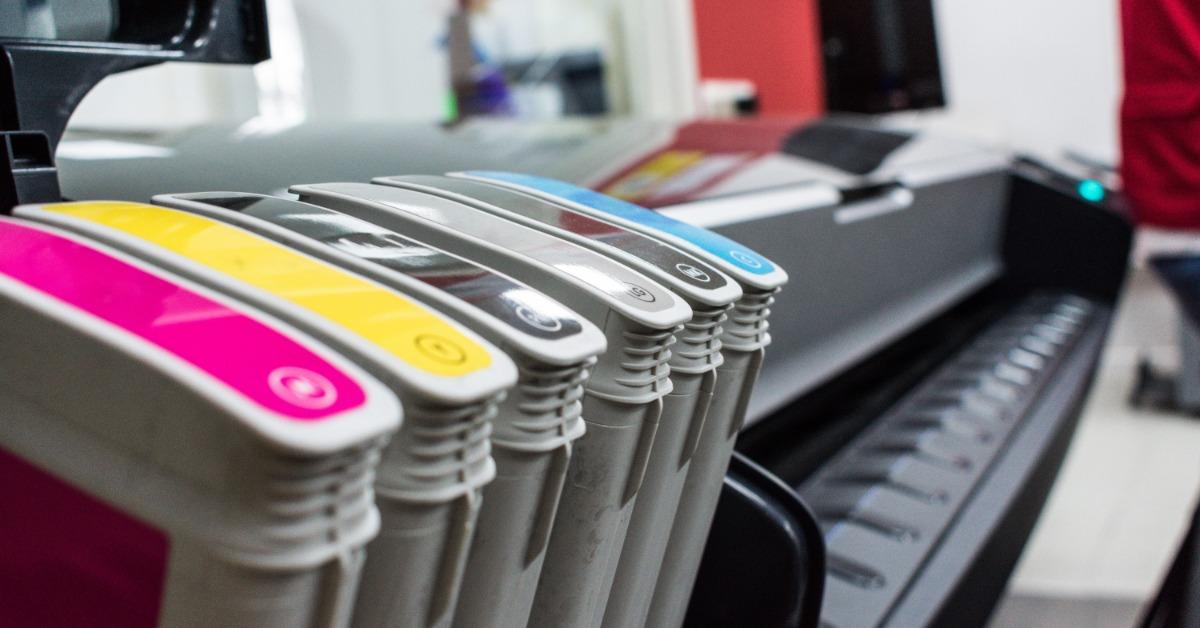
Some advice online might recommend rinsing a cartridge, wiping the nozzle plate, or forcing ink through the cartridge manually. Those methods may conflict with Canon’s instructions, especially on FINE cartridges. Canon specifically warns against rinsing or wiping FINE cartridges, so stick with the printer’s supported maintenance routine.
Use these safer boundaries while troubleshooting:
- Don’t rinse a FINE cartridge under water
- Don’t wipe electrical contacts with wet materials
- Don’t force air through cartridge openings
- Don’t repeat deep cleaning without checking results
- Don’t ignore model-specific maintenance instructions
Treat Tank Models Differently
Canon tank-based models may offer an ink flush function when normal and deep cleaning doesn’t successfully restore ink flow. That function uses a large amount of ink, and Canon warns that running it with too little ink may damage the printer. Check the tank levels first and follow your exact model’s instructions. A tank-system ink flush isn’t a substitute for the cartridge procedure used on FINE-based printers.
Know When To Stop
Repeated cleaning won’t fix every cartridge problem. If nozzle checks remain poor after the sequence Canon specifies, the cartridge may be empty, or the print head may have a problem. At that point, continuing to run maintenance cycles may waste ink without improving your print quality.
Your model’s support documentation should guide the next step. Some Canon FINE-cartridge manuals recommend cartridge replacement after cleaning and deep cleaning fail, while certain tank models move to an ink flush before further service. Following the appropriate sequence keeps your troubleshooting focused instead of turning cartridge maintenance into guesswork.
A stubborn cartridge doesn’t always need aggressive treatment; it needs the right diagnosis. Once you confirm the cartridge type, reseat it correctly, and judge the nozzle check. You’ll have a much better idea of what your printer needs.
Plotter Paper Guys helps customers match ink and printing supplies to the equipment that they use, so check our available options when a cartridge or related supply needs replacement. Choose the right replacement for your Canon model and get your printer back to producing clean, dependable output.